
Excel VBA Payslip Generator Error 1004? Why Microsoft Blocked Macros & What to Use Instead
Key Takeaways
- •The Red Security Banner: Microsoft Office now defaults to completely blocking untrusted VBA macros from the internet via Mark-of-the-Web (MOTW) NTFS attributes, breaking downloaded payslip macro templates without warning.
- •The Infamous Run-Time Error 1004: The classic VBA method
ActiveSheet.ExportAsFixedFormattriggers object-defined errors due to locked destination paths, Windows temp folder corruption, unhandled print area ranges, or printer driver conflicts. - •The New Outlook COM Breakdown: Microsoft's migration away from classic Win32 Outlook to web-based "New Outlook for Windows" completely breaks legacy VBA
CreateObject("Outlook.Application")email automation routines. - •Clean Architecture Separation: The modern standard separates calculation from document rendering. Keep clean financial logic in standard, macro-free
.xlsxsheets, and delegate PDF generation to compiled, sandboxed desktop tools like PayslipGen.
It is the 30th of the month. You sit down with your payroll workbook, ready to generate payslips for your 45 employees. You click the familiar gray button labeled "Generate All PDF Payslips & Email".
Instead of hearing your printer whir or watching files pop into your output directory, Microsoft Excel freezes for four agonizing seconds. Then, a stark dialog box appears:
Application-defined or object-defined error.
[Continue] [End] [Debug] [Help]
You click Debug, and the Visual Basic for Applications (VBA) editor highlights a single line in bright yellow:
wsPayslip.ExportAsFixedFormat Type:=xlTypePDF, _
    Filename:=strFilePath, _
    Quality:=xlQualityStandard, _
    IncludeDocProperties:=True, _
    IgnorePrintAreas:=False, _
    OpenAfterPublish:=False
Or worse: you send your macro-enabled payroll spreadsheet (.xlsm) to an assistant or business partner, and they are greeted by a crimson, unclickable banner across the top of Excel:
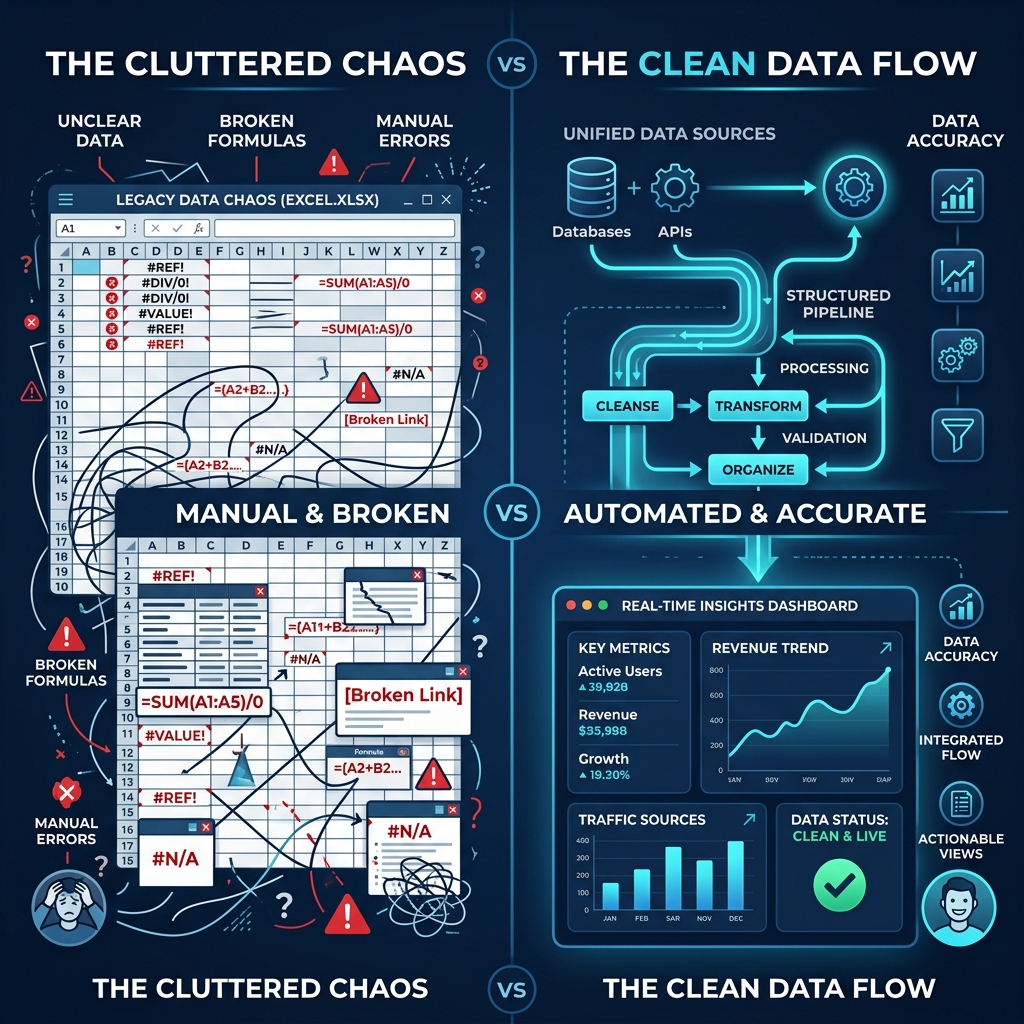
If this scenario sounds painfully familiar, you are not alone. Thousands of payroll administrators, office managers, and bookkeepers around the world are currently discovering that the duct-taped VBA macro scripts that powered their payroll for the last decade are rapidly collapsing under modern operating system security mandates.
In this comprehensive guide, we will unpack the exact technical reasons why Excel VBA payslip generators are breaking, why Microsoft has intentionally crippled VBA execution, and how to transition to a modern, robust, macro-free workflow using clean .xlsx spreadsheets and native desktop compilation.
1. Why Microsoft Declared War on Excel VBA Macros
To understand why your payslip macro workbook is failing, you have to look at the broader cybersecurity landscape. Visual Basic for Applications was engineered in the early 1990s—an era when desktop computers were isolated, local networks were trusted, and zero-day remote code execution vulnerabilities were not everyday corporate threats.
VBA gives arbitrary code execution full access to the Windows Win32 API. A macro inside an Excel spreadsheet can read system registry keys, execute command-line shell scripts, download binaries from remote servers, and access file systems without administrative confirmation. Consequently, for over two decades, macro-enabled Office documents (.docm, .xlsm) were the number one initial attack vector for global ransomware syndicates, banking trojans, and spear-phishing campaigns (such as Emotet, TrickBot, and Qakbot).
The Mark of the Web (MOTW) Enforcement
Starting in mid-2022, Microsoft made an unprecedented architectural shift: they permanently disabled the ability for users to enable VBA macros with a single click in files originating from the internet or email attachments.
When a file is downloaded from a web browser, Slack, Teams, Google Drive, or an email client, Windows automatically tags the file in the NTFS file system with a hidden alternate data stream known as Zone.Identifier (Zone 3 = Internet).
Get-Item .\Payroll_VBA_Payslip_Gen.xlsm -Stream Zone.Identifier
# Output:
[ZoneTransfer]
ZoneId=3
ReferrerUrl=https://mail.google.com/
HostUrl=https://attachment.googleusercontent.com/...
When Excel detects ZoneId=3, it completely prevents the VBA engine from initializing. There is no "Enable Content" yellow bar anymore. Instead, the user gets the red security banner with zero bypass options inside the Excel interface.
To run the macro, a non-technical staff member must close Excel, right-click the file in Windows Explorer, open Properties, check the obscure Unblock box at the very bottom of the General tab, and click Apply. If your organization enforces IT group policies (GPO) or Microsoft Intune endpoint management, even this manual checkbox is permanently grayed out.
2. Deconstructing the Infamous "Run-Time Error 1004"
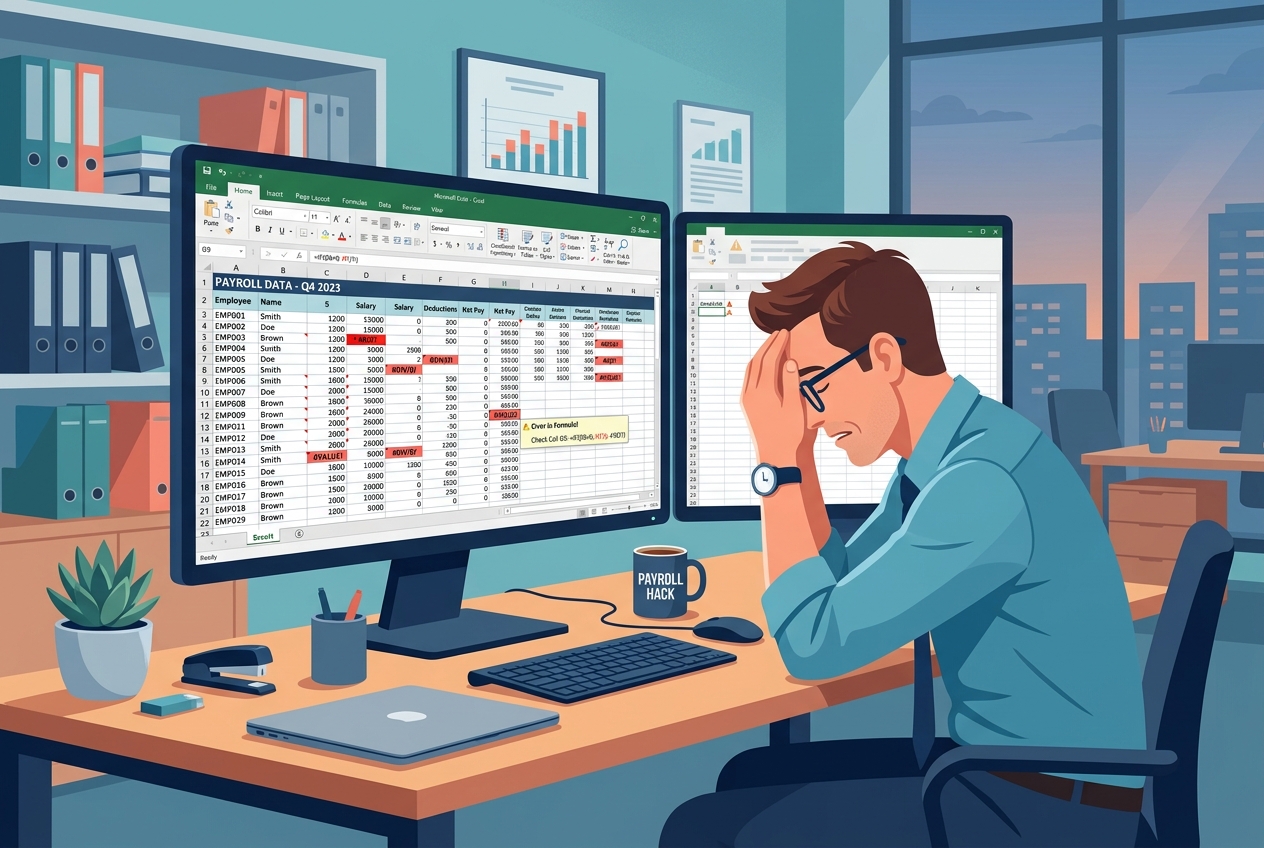
Even when you manually unblock macros, VBA payslip generators are notoriously brittle. The most dreaded error in the entire Microsoft Office ecosystem is:
Run-time error '1004': Application-defined or object-defined error.
Unlike descriptive programming exceptions in modern languages (such as Rust or TypeScript), Error 1004 is a generic catch-all COM exception. When executing a payslip generation macro, Error 1004 almost always strikes during the PDF export loop. Here are the four root causes that trigger it:
Root Cause A: File System Locking & Cloud Sync Collisions (OneDrive / SharePoint)
Most modern businesses do not store files on raw C:\ drives; they store workbooks in synced cloud directories like OneDrive for Business or SharePoint. When your VBA script attempts to save a generated PDF:
strFilePath = "C:\Users\Sarah\OneDrive - Company\Payslips\" & empID & ".pdf"
The OneDrive background synchronization agent immediately grabs an exclusive read/write lock on the target directory or existing file to calculate file hashes and upload delta changes. If your VBA loop moves to employee #2 while employee #1's file handle is locked by OneDrive, ExportAsFixedFormat crashes instantly with Error 1004.
Root Cause B: Print Area Mismatch & Page Setup Corruption
Excel's internal PDF exporter relies on the active Windows default printer driver to calculate page layout, font rendering, margins, and DPI. If an employee connects a new Bluetooth receipt printer, switches to a remote desktop session with redirected printers, or unplugs a USB printer, Excel loses its coordinate space:
- If
wsPayslip.PageSetup.PrintAreareferences dynamic rows that evaluate to$A$1:$H$0(an empty range),ExportAsFixedFormatthrows Error 1004. - If the default Windows printer is set to an offline network printer, the PDF subsystem fails because it cannot query the hardware rasterizer.
Root Cause C: Illegal Path Characters & Sanitization Failures
VBA has no built-in path validation. If an employee's legal name contains an accented character, a forward slash in a date column (09/30/2026), or trailing spaces in the company name column, the resulting filename string becomes invalid in the Windows Win32 file subsystem. Instead of returning "Invalid Filename", Excel abruptly crashes the entire execution with Error 1004.
Root Cause D: Windows Temp Folder Saturation
Every time Excel generates a PDF via VBA, it creates temporary spool files in %LOCALAPPDATA%\Temp. During a bulk payroll run of 100 or 200 employees, Excel fails to garbage-collect these spool files fast enough. Once the temporary handle limit is reached, the PDF engine chokes, resulting in mid-batch crashes where 32 payslips generate successfully and the 33rd terminates the entire macro.
3. The Death of Outlook Email Automation via VBA
If your legacy VBA payslip generator also automatically emailed the PDF payslip to each staff member, you are likely facing a second catastrophic failure: the death of MAPI / COM Automation.
For 25 years, VBA payroll scripts sent emails using this standard code snippet:
Dim OutlookApp As Object
Dim OutlookMail As Object
Set OutlookApp = CreateObject("Outlook.Application")
Set OutlookMail = OutlookApp.CreateItem(0)

With OutlookMail
    .To = empEmail
    .Subject = "Your Payslip - " & Format(Date, "mmmm yyyy")
    .Body = "Please find attached your confidential payslip."
    .Attachments.Add strFilePath
    .Send
End With
Why this no longer works:
- The "New Outlook for Windows" Transition: Microsoft is deprecating classic Win32 desktop Outlook (Outlook.exe) in favor of the web-based "New Outlook" (built on Chromium and React). The New Outlook does not support COM automation.
CreateObject("Outlook.Application")will throw ActiveX component can't create object (Error 429). - Modern Authentication (OAuth2 / MFA): Legacy VBA code cannot handle modern multi-factor authentication prompts, Conditional Access policies, or Microsoft Entra ID token refreshes.
- Anti-Virus & EDR Interception: Modern enterprise endpoint protection tools (like Microsoft Defender for Endpoint, CrowdStrike, and SentinelOne) actively intercept programmatic email dispatch from Office processes, categorizing bulk MAPI sends as malware worm behavior.
4. The Inherent Dangers of Running Payroll in VBA
Beyond technical errors and crashes, using VBA for payroll is an enormous legal and organizational liability:
Zero Data Protection & Encryption
VBA cannot natively apply AES-256 password protection to generated PDFs. It either sends completely unencrypted PDFs containing Social Security Numbers and banking details, or requires sketchy third-party command-line binaries (like QPDF or 7-Zip) executed via shell commands.
32-Bit vs 64-Bit Compatibility Hell
Older VBA workbooks written with 32-bit API declarations (Declare Function) fail immediately on modern 64-bit Office installations without rewriting declarations with PtrSafe and LongPtr pointer types.
The "Bus Factor" Nightmare
90% of VBA payroll generators were written by an office manager or freelance accountant who left the company four years ago. The code has zero documentation, spaghetti variable names, and breaks every time a new tax bracket or deduction code is added.
No Audit Trails or Version Control
VBA macros cannot be easily tracked in Git. An accidental formula edit or deleted module in an .xlsm file silently changes historical payroll computations without any record of who touched what.
5. The Clean Architecture Solution: Decouple Data from Document Generation
So how do modern accounting teams solve this without surrendering to expensive cloud payroll platforms that charge $8 to $12 per employee every single month?
The answer lies in Clean Separation of Concerns:
- Keep your math in Excel (Clean
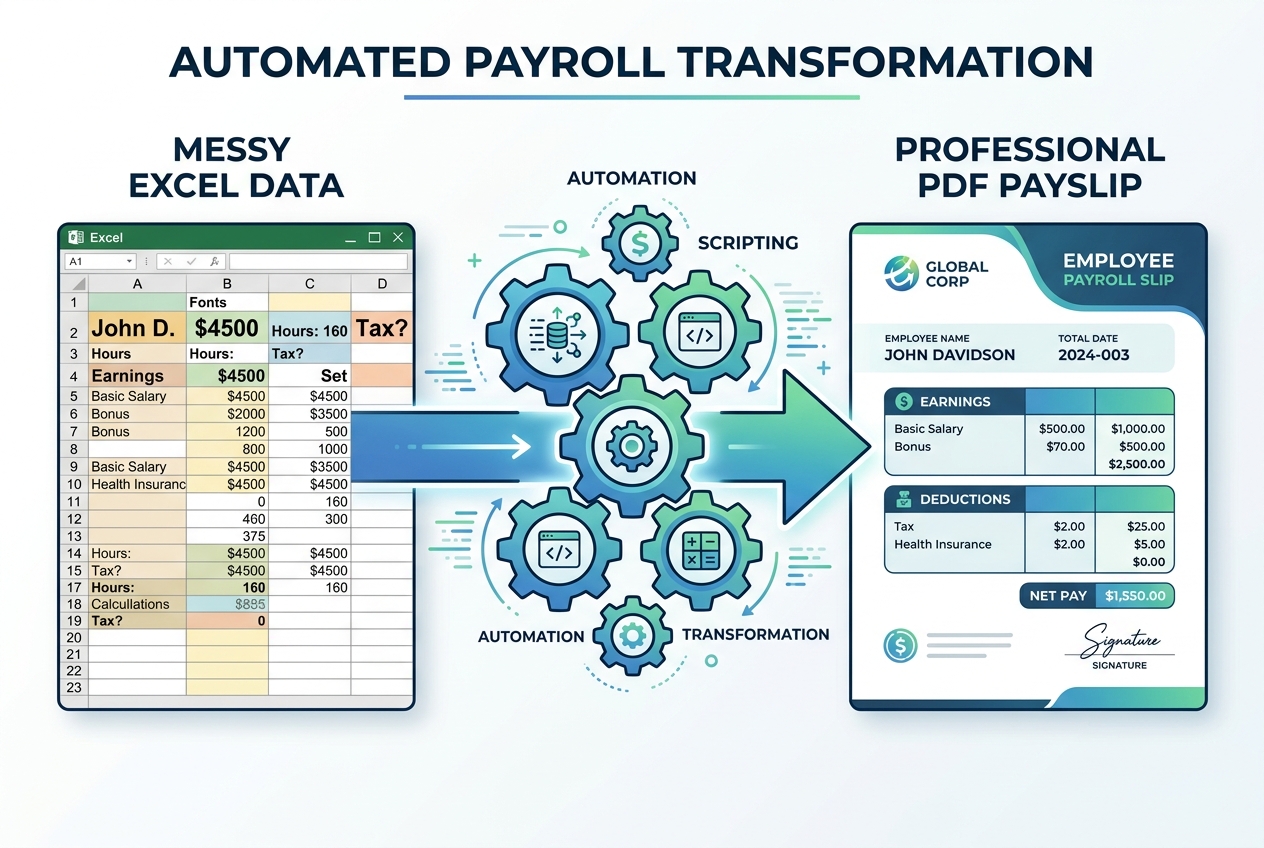
.xlsx):Excel remains the world's greatest calculation engine. You maintain employee records, hours worked, gross pay, tax deductions, and net pay in standard, macro-free spreadsheets. No macros, no VBA, no security warnings, and no corrupted modules. - Delegate document creation to a compiled native processor: Instead of asking Excel's sluggish COM engine to render PDFs, you feed your clean
.xlsxfile into a dedicated, compiled desktop application like PayslipGen.
How the Clean .xlsx Data Schema Works
Instead of maintaining a fragile "Template" tab and an "Employees" tab connected via messy VBA loops, you maintain a single, clean tabular master sheet. Every row represents one payroll disbursement:
| Column Header | Data Type | Example Value | Formula / Logic |
|---|---|---|---|
| Employee_ID | Text | EMP-1042 | Unique identifier for PDF naming & sorting |
| Full_Name | Text | Marcus Vance | Employee legal name |
| Regular_Hours | Numeric | 80.00 | Timesheet total |
| Hourly_Rate | Currency | $32.50 | Agreed base wage rate |
| Gross_Pay | Currency | $2,600.00 | =ROUND(C2*D2, 2) |
| Fed_Withholding | Currency | $284.15 | =VLOOKUP(E2, FedTaxTable, 3, TRUE) |
| FICA_Social_Security | Currency | $161.20 | =ROUND(E2*0.062, 2) |
| FICA_Medicare | Currency | $37.70 | =ROUND(E2*0.0145, 2) |
| Net_Pay | Currency | $2,116.95 | =ROUND(E2-SUM(F2:H2), 2) |
| DOB_Password | Date / String | 19880415 | Passphrase for bulk AES-256 PDF encryption |
6. Comparing Approaches: VBA vs Cloud SaaS vs PayslipGen
Let us evaluate the three major options available to small and medium business payroll operators:
| Evaluation Metric | Excel VBA Macro Scripts | Cloud SaaS (Gusto/QuickBooks) | PayslipGen (Native Desktop) |
|---|---|---|---|
| Cost Structure | Free upfront (High repair costs) | $600 to $2,400+ annually | $49 One-Time (Lifetime) |
| Security & Macro Warnings | Blocked by default (MOTW) | Cloud-hosted (Data privacy risks) | 100% Macro-Free Clean .xlsx |
| Stability / Error Rates | High (Error 1004, COM bugs) | High stability (Requires internet) | 100% Reliable (Compiled native) |
| Generation Speed | Sluggish (1-3 sec per payslip) | Slow (Web rendering & download) | Instant (100+ payslips in < 5 sec) |
| PDF Encryption (AES-256) | Impossible without hacky tools | Portal login required | Built-in automatic DOB protection |
| Offline Operation | Offline capable | Zero offline access | 100% Offline Air-Gapped |
7. Step-by-Step: How to Migrate from a VBA Macro Workbook to PayslipGen
You do not have to rebuild your entire payroll infrastructure from scratch. You can migrate your existing spreadsheet in under 15 minutes:
Step 1: Strip Out the Fragile Macro Code
Open your macro-enabled payroll workbook (.xlsm). In Excel, navigate to File > Save As. In the file type dropdown, select Excel Workbook (*.xlsx). Excel will display a warning dialog:
Click Yes. Congratulations: you have just permanently removed all security warnings, MOTW blocks, and macro attack vectors from your organization's payroll files.
Step 2: Ensure Your Data is Organized in a Tabular Roster
Make sure your main payroll tab has clear column headers on Row 1 (e.g., Employee Name, ID, Gross Pay, Federal Tax, State Tax, Net Pay, Pay Period). All calculations (overtime, commissions, benefit deductions) remain intact via standard Excel formulas.
Step 3: Launch PayslipGen and Map Your Columns
Open PayslipGen on your Windows, Mac, or Linux workstation. Drag and drop your newly saved .xlsx file onto the application window.
- PayslipGen automatically reads sheet headers and maps standard payroll fields.
- Upload your company logo once to embed sharp, vector-quality branding on every payslip.
- Select your preferred professional template layout (Corporate, Modern Minimalist, or Comprehensive Itemized).
Step 4: Enable Automated Password Protection (Optional)
Under Security Settings, select the column you wish to use as the encryption key (such as Date_of_Birth or Last_4_SSN). PayslipGen applies true military-grade AES-256 encryption to every generated PDF, ensuring compliance with state and federal data privacy standards.
Step 5: Generate Hundreds of Payslips in Under 5 Seconds
Click Generate All Payslips. Unlike Excel VBA, which painfully opens, populates, prints, and closes sheets one by one, PayslipGen compiles high-resolution PDFs concurrently in native memory. A payroll run of 100 employees finishes in less than four seconds.
8. Frequently Asked Questions (FAQ)
Can I temporarily fix Error 1004 without downloading new software?
Sometimes, yes. You can try: (1) Verifying that your destination folder exists and has full write permissions; (2) Changing your Windows default printer to "Microsoft Print to PDF" before running the macro; (3) Clearing the Windows Temp folder (%temp%); or (4) Checking the sheet's PageSetup.PrintArea in the VBA immediate window. However, these are temporary band-aids; the underlying COM architecture remains inherently unstable.
Why doesn't Microsoft just fix VBA so it stops crashing?
Microsoft considers VBA legacy technology in maintenance mode. All modern Office extensibility development has shifted to Office Scripts (TypeScript) and web add-ins. Microsoft has zero incentive to patch 30-year-old COM desktop printing APIs, especially when restricting macros directly strengthens Windows security against cyber threats.
Does PayslipGen require me to upload my Excel data to the internet?
Never. PayslipGen is a 100% offline desktop application that runs locally on your PC or Mac. Your employee rosters, salaries, banking details, and tax records never leave your local hard drive. It works completely without an internet connection.
Will my custom formulas and tax deduction columns still work?
Yes. PayslipGen reads the calculated output values directly from your Excel spreadsheet. You can use whatever complex Excel formulas you prefer—XLOOKUP, INDEX/MATCH, nested IF statements, or custom tables. PayslipGen simply takes the resulting financial numbers and formats them into a polished paystub.
Can I use PayslipGen on both Windows and macOS?
Yes! One of the biggest historical pain points of VBA was that macros written for Windows Excel failed miserably on Excel for Mac due to missing COM libraries. PayslipGen is fully cross-platform, offering native desktop binaries for Windows, macOS (Intel & Apple Silicon), and Linux.
Stop Debugging VBA Macros Every Single Payday
Transform your clean, macro-free Excel sheets into beautiful, encrypted PDF payslips in seconds. One-time payment of $49, lifetime access, zero monthly subscriptions.
Get PayslipGen for $49 (Lifetime Access)Conclusion: Upgrade Your Payroll to Sovereign, Modern Tools
Excel VBA macros served a noble purpose for decades, allowing resourceful business owners to automate tasks that enterprise software gatekept. But technology moves on. With modern operating systems actively blocking macro execution and cloud sync utilities locking file handles, relying on VBA for mission-critical payroll is a liability waiting to explode.
By separating your calculation data in clean .xlsx sheets from document generation in PayslipGen, you eliminate Error 1004 forever, protect employee privacy with military-grade encryption, and restore sanity to your monthly payroll routine.
(Ready to optimize your spreadsheet workflows? Check out our guides on Generating 500 Payslips from Excel, Bulk Password Protecting PDFs with Date of Birth, or explore Why Offline Payroll Security Protects Small Businesses.)