
How to Mail Merge with Unique PDF Attachments in Outlook (Without Broken VBA Macros)
Key Takeaways
- ✓Microsoft Word & Outlook native Mail Merge does not support individual, unique PDF attachments per recipient.
- ✓VBA scripts frequently crash due to MAPI security prompts, antivirus blocks, and modern Microsoft 365 OAuth2 authentication changes.
- ✓Dedicated desktop automation tools like PayslipGen map Excel data directly to encrypted PDFs and dispatch individual attachments in seconds.
- ✓Password-protecting sensitive attachments (payslips, tax docs) is essential for GDPR, HIPAA, and compliance standards.
Every month, thousands of HR managers, accountants, and office administrators encounter the exact same frustrating roadblock: you have an Excel spreadsheet containing payroll figures, employee email addresses, and personalized documents, and you want to send each person their own unique PDF via Microsoft Outlook.
You open Microsoft Word, navigate to the Mailings tab, configure your recipients, and prepare to merge. Then, reality hits: standard Mail Merge in Microsoft Office has no native capability to attach distinct, individual files to different recipients.
In this comprehensive guide, we examine why Microsoft Outlook and Word still lack this functionality, why common workarounds like Excel VBA macros cause more headaches than they solve, and how you can seamlessly execute a mail merge with unique PDF attachments securely and locally.

The Technical Limitation: Why Word & Outlook Mail Merge Fails with Attachments
The Mail Merge engine in Microsoft Office was architected in the late 1990s. Its primary design objective was generating mass printed letters or sending identical plain-text or HTML email bodies where only placeholder text fields (such as «First_Name» or «Salary_Amount») were substituted dynamically.
When it comes to binary file attachments, Word's COM automation model treats the email message as a static template. If you insert an attachment into a Word mail merge template, Word attaches the exact same file to every single outgoing email. There is no built-in field or UI option to tell Outlook: "Attach C:\Payslips\John_Doe.pdf for John, and C:\Payslips\Jane_Smith.pdf for Jane."
The 3 Flawed Workarounds (And Why They Break Down)
When faced with this limitation, most professionals search Reddit, YouTube, and StackOverflow for workarounds. Here is why the three most common approaches routinely fail in production environments:
1. The Fragile VBA / Macro Script
The most widely suggested DIY workaround is writing a Visual Basic for Applications (VBA) macro inside Excel. The macro opens an Outlook MAPI session, loops through each row in your spreadsheet, locates a PDF on your hard drive, attaches it, and calls MailItem.Send.
- Outlook Security Alerts: Modern Windows Defender and Antivirus systems block external programmatic access to Outlook with popups warning: "A program is trying to send an email on your behalf."
- Modern Auth / OAuth2 Incompatibility: Many corporate Microsoft 365 tenants have disabled legacy basic authentication, causing classic CDO/MAPI scripts to fail silently.
- Maintenance Burden: If a column header is moved or an employee's file name contains a special character (like an apostrophe or hyphen), the entire loop crashes halfway through, leaving you guessing who received their payslip and who didn't.
2. Microsoft Power Automate Cloud Flows
Some IT departments build cloud flows using Microsoft Power Automate. While Power Automate is modern, it introduces significant operational challenges for small businesses:
- Cloud Privacy Exposure: To use Power Automate, your sensitive employee salary files must be uploaded to OneDrive or SharePoint cloud storage, creating data residency concerns.
- Premium Licensing Costs: Automated desktop flows and high-frequency connectors require expensive per-user or per-flow monthly Power Automate licenses.
- Complexity: Configuring JSON schema parsing, dynamic SharePoint folder path loops, and SMTP connectors requires advanced technical skills.
3. Third-Party Outlook Add-Ins
Several third-party VSTO add-ins exist to patch Word's mail merge. However, these add-ins often require recurring annual subscription licenses, slow down Outlook's startup speed, and can introduce stability issues when Microsoft pushes automated Office updates.
The Modern Solution: Native Local Desktop Automation
The most reliable, error-free method to mail merge unique PDF attachments is using a dedicated desktop application like PayslipGen. Instead of trying to force Word and Excel to coordinate through fragile macros, PayslipGen handles the entire pipeline locally on your machine:
- Imports Raw Excel Data: Reads your existing
.xlsx,.xls, or.csvspreadsheet directly. - Generates Encrypted PDFs: Converts each row into a branded, print-quality PDF and encrypts it with a unique password (e.g., date of birth or employee ID).
- Direct SMTP Dispatch: Sends personalized emails with the exact matching attachment using your existing email provider (Microsoft 365, Outlook, Gmail, or custom SMTP).
Try Our Interactive Demo Instantly
Want to see how an offline-capable, client-side payslip generator works in practice? Try our brand-new interactive demo right in your browser. Upload a sample CSV, map your columns, and generate beautifully designed PDF payslips—with zero data ever being transmitted to our servers.
Launch Free Demo NowStep-by-Step Guide: How to Mail Merge Unique Attachments Using PayslipGen
Step 1: Format Your Excel Spreadsheet
Ensure your master payroll file contains clear column headers. You only need standard payroll columns, such as:
Employee Name(e.g., Sarah Jenkins)Email Address(e.g., sarah.j@company.com)Employee ID / Password Pin(used to encrypt the PDF)- Salary components (Basic Pay, Allowances, Tax, Pension, Net Pay)
Step 2: Load Your Spreadsheet and Map Columns
Open PayslipGen on your Windows, Mac, or Linux computer. Drag and drop your spreadsheet into the app. The intelligent mapping engine will automatically match your spreadsheet columns to standard payslip fields. You can also customize your company logo, color theme, and currency format.
Step 3: Enable Password Protection
Under the Security tab, toggle on Password Protection. Select the column you want to use as the password key (such as Date of Birth in YYYYMMDD format or Employee ID). PayslipGen will apply 128-bit AES encryption to every generated PDF file individually.
Step 4: Configure Email Settings (Outlook / SMTP)
In the Email Delivery settings, connect your mail server. You can enter your Microsoft 365 / Outlook SMTP credentials or use an App Password. Customize your email subject line and body using dynamic tags:
Subject: Your Payslip for {{Month}} {{Year}} - {{Company_Name}}

Dear {{First_Name}},

Please find attached your encrypted payslip for the month of {{Month}}.
Your password to open the document is your 4-digit Employee ID.

Best regards,
Payroll & HR Department
Step 5: Preview and Send with Live Tracking
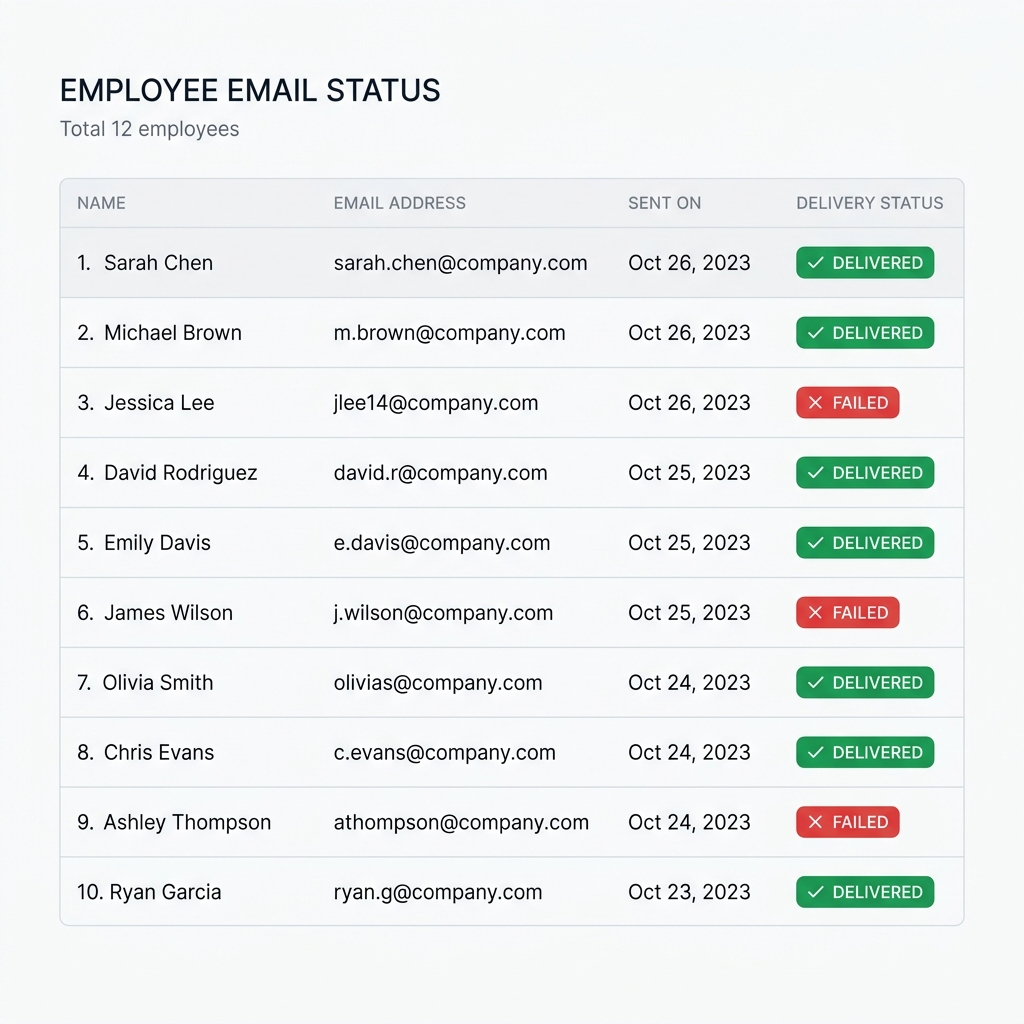
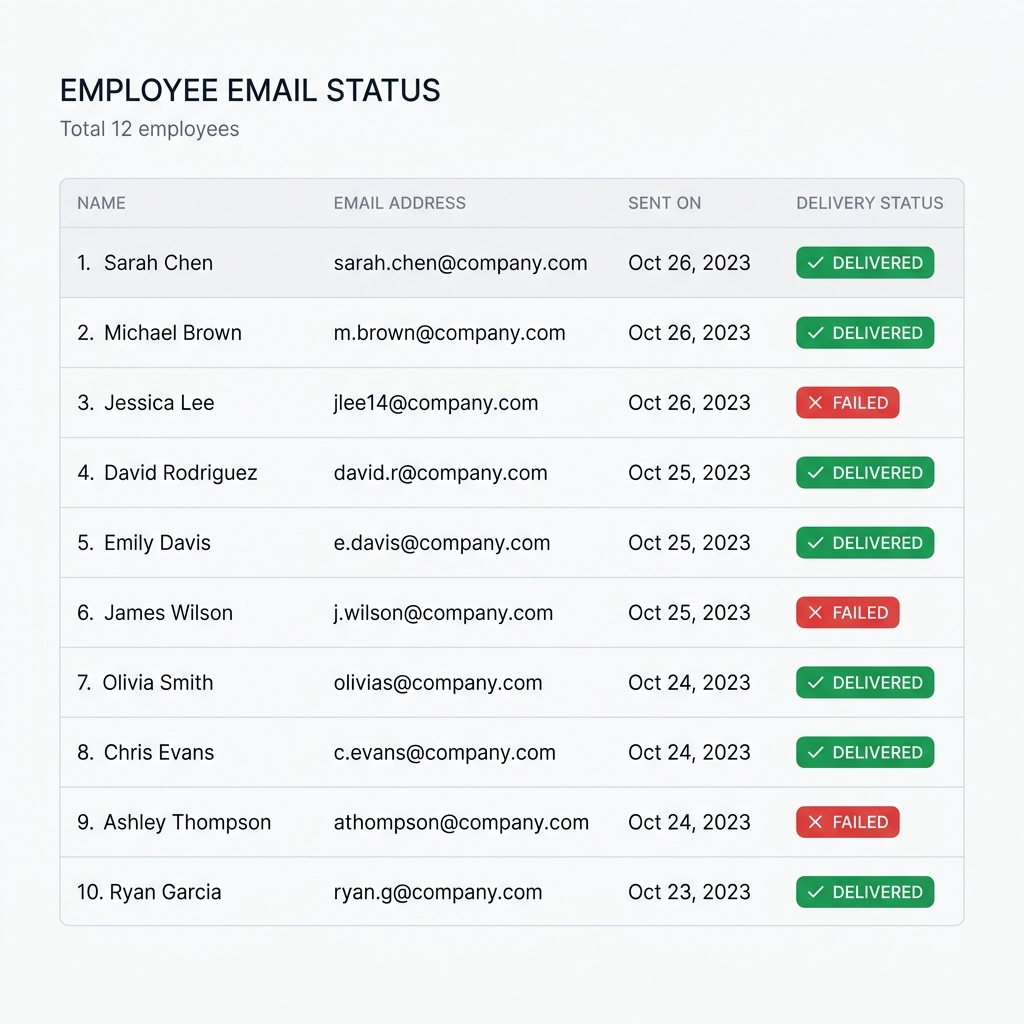
Click Preview to inspect a sample generated PDF and email draft. When satisfied, click Send All. PayslipGen throttles delivery to comply with provider sending limits and provides real-time progress indicators so you can see every delivered attachment.
Method Comparison: Which Workflow is Right for You?
| Feature / Capability | VBA / Excel Macro | Power Automate | PayslipGen Desktop |
|---|---|---|---|
| Unique PDF Attachments | Possible with complex code | Supported | Native 1-Click |
| Setup Complexity | High (Requires coding) | High (Flow logic) | Zero Coding |
| Data Privacy & Security | Local (Unprotected macros) | Cloud dependent | 100% Offline / Local |
| Automated PDF Encryption | Requires 3rd party DLLs | Requires Premium APIs | Built-in AES 128-bit |
| Pricing Model | Free (High time cost) | $15+/user/month | One-Time Purchase |
Security & Legal Compliance: Why Plain Attachments Are Risky
Sending unencrypted payslips or tax documents via email is a severe compliance risk under GDPR (Article 32), HIPAA, and regional privacy regulations. Standard email transmission can be intercepted, or emails can be forwarded or opened on shared family computers.
By automatically encrypting every PDF attachment with a personal recipient credential, your organization establishes a robust defense-in-depth posture that satisfies corporate auditors and data protection officers.
Frequently Asked Questions (FAQ)
Can Word Mail Merge send attachments natively?
No. Microsoft Word Mail Merge only supports sending plain-text or HTML email bodies. It cannot attach unique, personalized PDF files to different recipients without third-party tools or external automation software.
Will my emails get flagged as spam when sending in bulk?
When using desktop software like PayslipGen, emails are sent through your authentic email provider (such as your own Microsoft 365 or Google Workspace account) with built-in rate-limiting and throttling, ensuring maximum deliverability without triggering spam filters.
Do I need to install Microsoft Outlook on my computer?
No. Unlike VBA scripts which require the desktop Outlook client to be running, modern tools like PayslipGen can connect directly to any SMTP server, Microsoft 365 account, or Gmail account via standard secure protocols.
Is employee payroll data uploaded to any cloud server?
No. PayslipGen processes 100% of your Excel data and generates all PDF files locally on your computer. Your sensitive payroll data never touches any third-party cloud database.
Conclusion
Relying on fragile VBA scripts or manual copy-pasting to send individual PDF attachments is a massive drain on HR resources and an unnecessary data security risk. By switching to a purpose-built desktop automation workflow, you can complete your monthly payroll distribution in minutes with complete peace of mind.
Automate Your Payslip Mail Merge Today
Generate hundreds of encrypted, professional PDF payslips and email them with unique attachments in seconds. No coding, no macros, no monthly fees.