
Batch Payslip Delivery via Gmail SMTP: How to Configure Google Workspace Relays Without Getting Rate-Limited
Key Takeaways
- ✓Consumer Gmail vs Google Workspace Limits: Free personal
@gmail.comaccounts are capped at 500 emails per 24 hours, whereas Google Workspace business accounts enjoy a robust quota of 2,000 emails per day. - ✓Mandatory App Passwords with 2FA: Google has disabled 'Less Secure Apps'. Modern batch payroll dispatch requires creating a dedicated 16-character Google Workspace App Password under 2-Step Verification.
- ✓Preventing Automated Spam Detection: Rapidly bursting dozens of PDF attachments through standard web interfaces flags accounts for suspicious activity. Dedicated SMTP engines with staggered 2-second intervals bypass Google spam filters.
- ✓Proper SPF, DKIM & DMARC Alignment: Sending via official Google Workspace SMTP guarantees that your outgoing payslips carry valid cryptographic signatures, ensuring emails land in the primary inbox rather than junk folders.
For small and mid-sized businesses, Google Workspace (formerly G Suite) is the central communication hub. It powers company domain emails, calendar invites, and cloud document storage. When payroll day arrives, utilizing your existing Google Workspace account to email payslips to staff is the most natural, trusted approach. Because the emails originate from your verified company domain (e.g., payroll@yourcompany.com), employees recognize the sender immediately, and spam filters rarely block them. However, many administrators who attempt to automate bulk payslip delivery via Gmail encounter severe roadblocks: sudden rate-limit bans, authentication rejections ('535-5.7.8 Username and Password not accepted'), or blocked email attachments. In this technical guide, we break down the exact protocols, authentication requirements, and delivery rules needed to execute batch payslip delivery through Gmail SMTP smoothly and reliably.
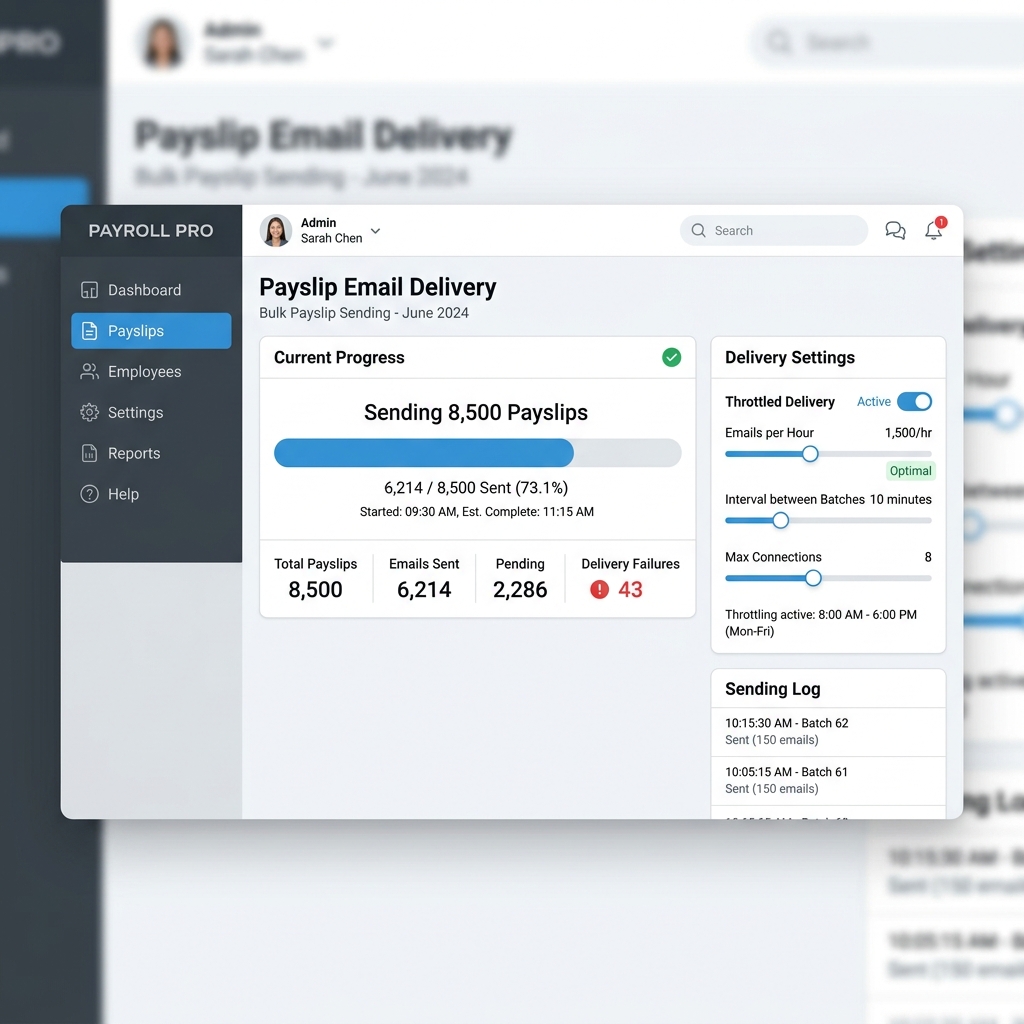
Try Our Interactive Demo Instantly
Want to see how an offline-capable, client-side payslip generator works in practice? Try our brand-new interactive demo right in your browser. Upload a sample CSV, map your columns, and generate beautifully designed PDF payslips—with zero data ever being transmitted to our servers.
Launch Free Demo NowChapter 1: Understanding Google's Outbound SMTP Quotas
Before configuring any bulk emailing tool, administrators must understand Google's strict outbound sending limits. Google enforces these rules to protect its global server reputation and prevent accounts from being hijacked by spammers:
- Personal Gmail Accounts (
@gmail.com): Restricted to a rolling 24-hour limit of 500 recipients**. Furthermore, personal accounts enforce aggressive burst throttling: attempting to send 50 emails within 30 seconds can trigger a temporary account lock lasting up to 24 hours. - Google Workspace Accounts (Paid Custom Domain): Enterprise and business accounts have an expanded limit of 2,000 recipients per day** via SMTP relay.
- Single-Message Attachment Limit: Google enforces a maximum message size of 25 MB**, which includes the email body and all attachments combined. Because base64 encoding adds approximately 33% overhead, a safe maximum file size for a single PDF payslip is roughly 18 MB (far larger than a standard 100 KB payroll PDF).
For any company with 10 to 500 employees, Google Workspace provides more than enough daily throughput to handle monthly or bi-weekly payroll runs, provided the dispatch software introduces civilized delays between messages.
Chapter 2: Modern Google Authentication: App Passwords & 2FA
In mid-2022, Google officially deprecated support for 'Less Secure Apps'—the legacy mechanism that allowed external software to log into Gmail using the user's primary password. Today, entering your standard Google password into an SMTP script or software will immediately fail with an authentication error.
To configure secure desktop payroll software, you must generate a dedicated Google App Password:
- Log into your Google Account management console at
myaccount.google.com. - Navigate to the Security tab on the left navigation panel.
- Under the 'How you sign in to Google' section, verify that 2-Step Verification is enabled. (App Passwords cannot be created without 2FA active).
- Search for or select App Passwords.
- Under 'App name', enter a descriptive identifier such as 'PayslipGen Desktop'.
- Click Create. Google will generate a unique 16-character alphanumeric code (e.g.,
abcd efgh ijkl mnop). - Copy this 16-character string directly into your payroll software's SMTP password field.
This App Password bypasses two-factor prompts during background batch dispatch while maintaining maximum security. If you ever need to revoke access, you can delete the App Password instantly from your Google security dashboard without changing your primary account password.
Chapter 3: Exact Gmail SMTP Connection Parameters
To ensure an instant, error-free connection, configure your desktop payroll software with these exact parameters:
| Configuration Setting | Required Value | Notes & Best Practices |
|---|---|---|
| SMTP Server Host | smtp.gmail.com | Primary Google mail transfer agent |
| Port | 587 | Standard submission port with TLS |
| Encryption Type | STARTTLS | Explicit TLS cryptographic upgrade |
| Alternative Port | 465 (SSL/TLS) | Use only if Port 587 is blocked by your local network |
| Authentication | Required (Yes) | Plain text over TLS connection |
| Username | payroll@yourcompany.com | Your full Google Workspace email address |
| Password | 16-character App Password | Generated from Google Account Security tab |
| From Name | Company Payroll Dept | Display name visible to employees |
Chapter 4: Throttling Strategies to Avoid Account Suspensions
The leading reason automated payroll scripts trigger Google security blocks is burst rate violations. When an unthrottled Python or VBA script opens 50 simultaneous TCP connections to smtp.gmail.com and attempts to transmit 50 emails in two seconds, Google's automated anomaly detection flags the account as potentially compromised.
To ensure 100% delivery reliability:
- Implement a Staggered Queue:** Your batch software should process emails sequentially rather than concurrently.
- Randomized Inter-Message Delay: Introduce a delay between 1,500 and 3,500 milliseconds** between consecutive emails. This mimics human sending patterns while still dispatching 20 to 30 payslips per minute.
- Automatic Reconnect on Socket Timeout:** If an individual TCP connection experiences a transient timeout, the software should pause for 5 seconds, re-authenticate, and retry the specific failed recipient without restarting the entire batch from row 1.
Chapter 5: Email Deliverability: SPF, DKIM & Corporate Firewalls
When sending payslips to employees, some workers may use external personal email addresses (such as personal Yahoo, Hotmail, or iCloud accounts). Ensuring these emails land in their inbox rather than spam requires proper domain authentication:
- SPF (Sender Policy Framework):** Your company domain's DNS must include
v=spf1 include:_spf.google.com ~all. This certifies that Google's SMTP servers are authorized to send mail on behalf of your domain. - DKIM (DomainKeys Identified Mail):** Enabled via Google Workspace Admin Console. Google cryptographically signs the email header using a private key, guaranteeing that the message was not altered in transit.
- Clean Attachment Naming:** Never name payslip files with generic or suspicious strings like
file_123.pdforinvoice.exe. Use clean, professional nomenclature such asPayslip_Sarah_Jenkins_Sep2026.pdf.
Chapter 6: Step-by-Step Batch Dispatch Walkthrough
Here is the practical workflow for executing a flawless batch payslip run using Gmail SMTP:
- Verify Spreadsheet Columns:** Confirm that employee email addresses are clean and that password keys (DOB or Employee ID) are properly formatted.
- Test SMTP Connection:** In PayslipGen, navigate to Settings > SMTP Configuration, enter your Google Workspace details and 16-character App Password, and click 'Test Connection'. The application sends a verification ping to confirm TLS handshake success.
- Draft a Professional Email Template:** Write a clear subject line (e.g.,
Your Payslip for Period Ending September 30, 2026) and include clear decryption instructions in the email body. - Execute the Batch:** Click 'Send Batch'. Monitor the live progress indicator as the software renders, encrypts, and delivers each file with the configured 2-second delay.
- Review Transmission Log:** Save the generated delivery report to your payroll archive folder for complete audit accountability.
Chapter 7: Real-World Case Study: 120-Employee Regional Retail Chain
The critical importance of proper SMTP relay configuration is highlighted by the operational challenge faced by Beacon Retail Group, an independent chain of seven hardware stores employing 120 full-time and part-time hourly associates.
The company used Google Workspace for all internal store communications. On their bi-weekly Friday payroll, the assistant controller attempted to send all 120 payslip attachments through an unthrottled Python script connected to their primary administrative Gmail account.
The consequences were immediate and disruptive: * Within four seconds of initiating the script, Google's automated abuse detection systems flagged the rapid burst of 120 outbound connections as a suspected spam bot or compromised account. * Google immediately locked the administrative account, disabling email access for the entire corporate headquarters for nearly 16 hours. * Half of the store associates never received their payslips, prompting hundreds of anxious phone calls to store managers regarding whether their paychecks had been cancelled.
Beacon Retail Group resolved this vulnerability permanently by deploying PayslipGen with tuned SMTP relay parameters: 1. They created a dedicated corporate service account (payroll@beaconretail.com) equipped with a 16-character Google Workspace App Password. 2. They configured PayslipGen's internal transmission queue with a 2,500ms delay between consecutive emails, ensuring an orderly transmission rate of 24 payslips per minute. 3. The entire 120-associate batch now delivers smoothly in under five minutes without triggering Google security blocks or IP reputation penalties.
Chapter 8: Google Workspace SMTP Security Hardening Protocol
To maintain the highest security standards when deploying automated email dispatch across your Google Workspace organization, enforce these four security hardening protocols:
- Protocol 1: Dedicated Payroll Service Account:** Never use an executive's personal email account (e.g.,
ceo@yourcompany.com) to dispatch batch payroll. Create a dedicated service identity likepayroll@yourcompany.comorremittance@yourcompany.comto isolate financial dispatches from general communication. - Protocol 2: App Password Isolation:** Ensure the dedicated 16-character Google App Password is stored securely inside the desktop software's encrypted local keychain. Revoke and regenerate this token whenever payroll staff changes occur.
- Protocol 3: DMARC Policy Enforcement:** Verify that your domain's DMARC record is set to at least
p=quarantineorp=reject. This guarantees that malicious threat actors cannot spoof your payroll address to send fraudulent phishing emails to your staff. - Protocol 4: Automated Dispatch Archiving:** Configure an internal BCC or audit routing rule in Google Workspace that automatically copies all outgoing payslip dispatches to a secure, read-only compliance vault for permanent regulatory retention.
Frequently Asked Questions
Can I use my free personal @gmail.com account for this?
Yes. However, remember that free Gmail accounts have a lower 24-hour limit (500 recipients) and may be scrutinized more heavily by spam filters. A paid Google Workspace business domain is strongly recommended.
Why do I get 'Error 535: Username and Password not accepted'?
This almost always means you entered your standard Google account password instead of a dedicated 16-character App Password, or you have not yet enabled 2-Step Verification on the account.
Will my employees' email providers block password-protected attachments?
No. Password-protected PDFs are standard commercial business documents. As long as your domain SPF and DKIM records are configured, major providers (Gmail, Outlook, Yahoo, Apple Mail) deliver encrypted payslips cleanly.
What should I do if an employee has a typo in their email address?
A quality batch tool logs invalid email addresses without aborting the batch. You can review the failure log at the end of the run, correct the typo in your Excel file, and re-send to that individual employee with one click.
What should I do if Google returns error '421-4.7.0 Try again later'?
This error indicates that you are exceeding Google's temporary burst connection limit. In PayslipGen's settings, increase your inter-message dispatch delay from 1,500ms to 3,000ms to resolve the throttling.
Can I send payslips from an alias address like 'no-reply@company.com'?
Yes. If your Google Workspace account has a configured and verified send-as alias, you can specify that alias in PayslipGen's 'From Email' field while authenticating with your primary account credentials.