
Alternatives to Manual Payroll Spreadsheets: How Companies with 10 to 50 Employees Cut Processing Time by 90%
Key Takeaways
- ✓The Administrative Tipping Point: When a business scales beyond 10 employees, manual spreadsheet copy-pasting takes 4 to 6 hours per payroll cycle and introduces a 3% to 8% human error rate.
- ✓The False Dichotomy of Cloud SaaS: Business owners often believe their only choice is either painful manual copy-pasting or paying $2,000+ per year for rigid cloud HR subscriptions.
- ✓The Local-First Automation Alternative: Local desktop tools allow you to keep your trusted Excel calculations while automating the tedious steps: generating individual PDFs, encrypting files, and emailing workers.
- ✓Slashing Processing Time from Hours to Seconds: Automating PDF compilation and SMTP dispatch reduces your bi-weekly payroll routine from an exhausting half-day ordeal to a 60-second administrative check.
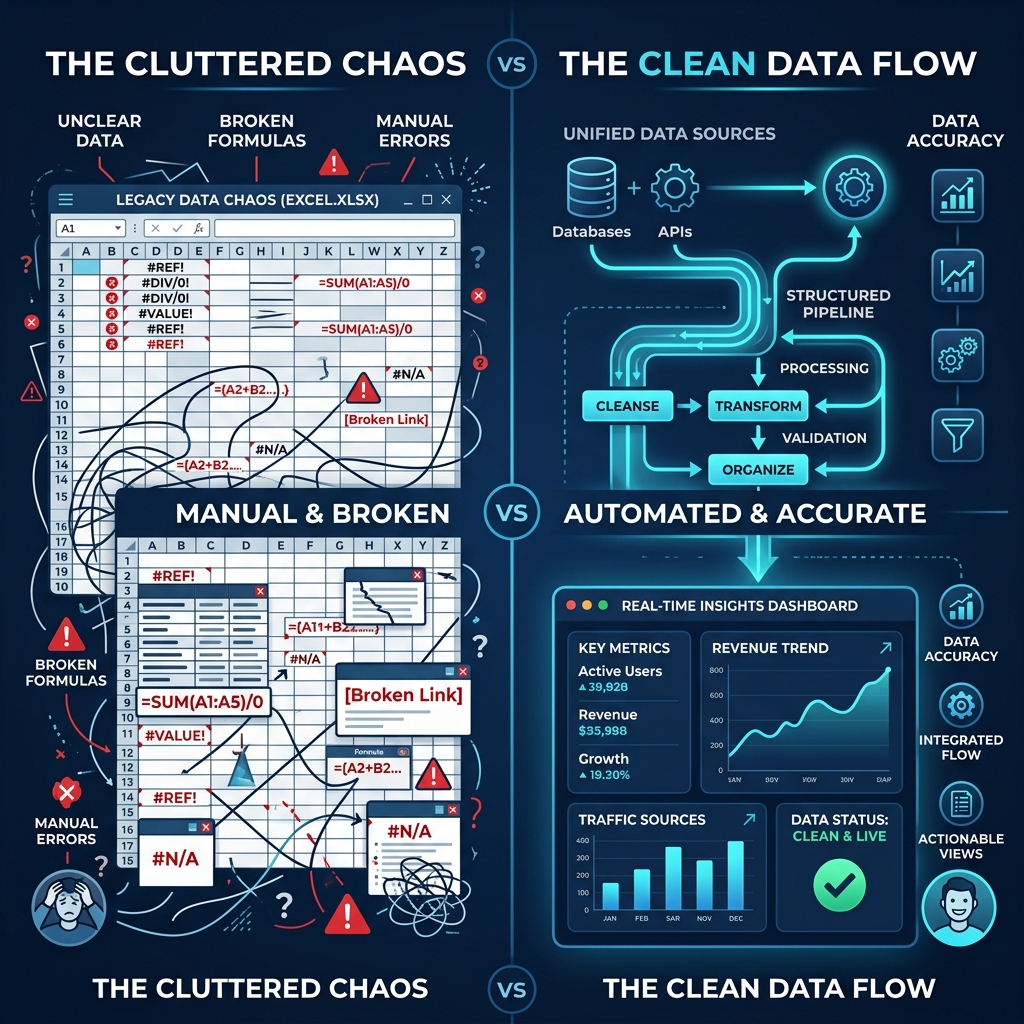
When an entrepreneur launches a new company, managing payroll in Microsoft Excel or Google Sheets is practical and efficient. For 2, 3, or 5 team members, an administrator can easily calculate hours, compute tax withholdings, type up a simple salary slip, save it as a PDF, and send an email. But as the organization scales to 10, 20, 35, and 50 workers, this manual process breaks down. What was once a quick 20-minute task morphs into an exhausting, high-stress half-day ordeal. Copy-pasting individual salary figures across multiple tabs invites catastrophic human errors: an employee receives a colleague's salary statement, formulas get accidentally overwritten, and Friday evenings are lost to administrative fatigue. If your business employs between 10 and 50 people, here is how you modernize your payroll workflow without surrendering thousands of dollars to monthly cloud subscriptions.
Try Our Interactive Demo Instantly
Want to see how an offline-capable, client-side payslip generator works in practice? Try our brand-new interactive demo right in your browser. Upload a sample CSV, map your columns, and generate beautifully designed PDF payslips—with zero data ever being transmitted to our servers.
Launch Free Demo NowChapter 1: The Anatomy of Spreadsheet Failure at 15+ Employees
To understand why manual spreadsheets break down, consider the compounding mathematics of manual payroll processing for a 25-person team:
- Separate Data Extractions:** Copying gross earnings, tax withholdings, overtime hours, and net pay from the master worksheet into an individual payslip template 25 times.
- PDF Export Steps:** Navigating to File > Save As > PDF, verifying print margins, typing the employee's filename, and saving the document.
- Email Composition Cycles:** Opening an email client, creating a new message, typing the employee's email address, writing a greeting, attaching the specific PDF, and hitting send.
This manual sequence requires over 75 separate manual touchpoints. Even at an efficient pace of 3 minutes per employee, the process consumes over 75 minutes of unbroken concentration.
Human cognitive endurance studies show that error rates spike dramatically after 30 minutes of repetitive data entry. Inevitably, the administrator attaches Sarah's PDF to David's email, creating an immediate breach of salary confidentiality that damages employee morale and company trust.
Chapter 2: The SaaS Trap: Overpaying for Simplicity
When business owners realize that manual spreadsheets are no longer sustainable, their immediate instinct is to look at cloud payroll software like Gusto, Rippling, or QuickBooks Payroll.
However, once sales demos conclude and invoices arrive, many owners realize they have fallen into the SaaS subscription trap: * A company with 30 employees pays approximately $220 per month, or $2,640 every single year, on entry-level plans. * If the business has custom compensation structures—such as sales commissions, piece rates, tool allowances, or per diem stipends—rigid SaaS software cannot accommodate them without expensive custom enterprise tiers. * The company is forced to abandon its familiar Excel spreadsheets and spend weeks training staff on complex new web portals.
This creates a frustrating dilemma: manual spreadsheets take too long, but cloud SaaS software is too expensive and rigid.
Chapter 3: The Third Way: The Local-First Automation Model
Fortunately, businesses are no longer trapped between manual drudgery and expensive cloud subscriptions. A third option has emerged: Local-First Desktop Automation.
In the local-first model, you keep the best part of your existing workflow—your flexible, customized Excel spreadsheet—and automate the manual, repetitive bottlenecks:
- Keep Your Calculations in Excel:** Continue using your formulas for hours, commissions, bonuses, and tax deductions. No software vendor can dictate how you calculate your payroll.
- Automate the Output with Desktop Software:** Instead of copying and pasting, you drag your finished Excel file into a native desktop application like PayslipGen.
- One-Click Batch Execution:** The software reads all 30 rows simultaneously, renders 30 customized PDF payslips with your company logo, encrypts each document with the employee's password, and emails every worker their specific file in under 60 seconds.
Chapter 4: Cost & Time Comparison for a 30-Person Team
Let us examine a rigorous financial and operational comparison over a 3-year period for a business employing 30 workers:
| Operational Metric | Manual Excel + Outlook | Cloud Payroll SaaS (Gusto) | Local Desktop (PayslipGen) |
|---|---|---|---|
| Bi-Weekly Processing Time | 3.5 to 5.0 hours | 20 to 30 minutes | Under 60 seconds |
| Annual Staff Labor Cost (at $30/hr) | ~$3,900.00 in wasted time | ~$450.00 in administrative time | ~$30.00 in administrative time |
| Annual Software Fees | $0.00 | $2,640.00 / year | $0.00 (One-time $49 paid) |
| 3-Year Total Cost (Labor + Software) | $11,700.00 | $9,270.00 | $139.00 Total |
| Human Error / Misdelivery Risk | High (accidental misdirection) | Low (portal login) | Zero (automated dynamic binding) |
| Security & Data Privacy | Low (unencrypted attachments) | Medium (third-party cloud servers) | Maximum (AES-encrypted, 100% on-premise) |
Chapter 5: Step-by-Step Transition Plan for 10–50 Employee Teams
Transitioning from manual copy-pasting to automated desktop processing is effortless:
- Step 1: Clean Up Your Master Excel Sheet:** Combine your payroll calculations into a single master worksheet where each row represents one employee, and columns represent distinct earnings and deduction items.
- Step 2: Add Identification Columns:** Verify you have columns for Employee ID, Full Legal Name, and Destination Email Address.
- Step 3: Define Your Password Policy:** Decide on an encryption rule (e.g., DOB in YYYYMMDD format or Employee ID).
- Step 4: Load and Map in PayslipGen:** Drop your spreadsheet into the application, select your company branding, and verify visual field mapping once.
- Step 5: Run Batch Generation:** Hit 'Generate & Send'. Watch your bi-weekly payroll processing time collapse from half a day to under one minute.
Chapter 6: Sustaining Growth Without Expanding HR Overhead
As your business expands from 20 to 40, and eventually 75 employees, maintaining a streamlined administrative structure is essential to preserving healthy profit margins. Adding dedicated HR administrative headcount simply to copy-paste numbers into templates is an inefficient use of corporate capital.
By decoupling payroll calculation (in Excel) from automated document production and delivery (via PayslipGen), your existing office manager or accountant can scale effortlessly. Whether processing 15 payslips or 150 payslips, the computer handles the computational workload in seconds, leaving your team free to focus on revenue-generating business operations.
Chapter 7: Real-World Case Study: Dental Clinic Group (28 Staff Across 3 Locations)
The transformative impact of automating spreadsheet output is illustrated by the experience of Metro Dental Partners, a group of three dental clinics in Minneapolis employing 28 dentists, hygienists, and receptionists.
For four years, the practice manager processed payroll using a master Excel workbook. The spreadsheet performed calculations accurately, factoring in complex hygienist commission tiers and hourly receptionist wages. However, the distribution phase was an administrative nightmare: * The manager spent four hours every alternating Friday manually copying data for each employee into a Word template, saving 28 individual PDF files, and typing individual emails. * During one rushed holiday payroll run, an email containing an associate dentist's high commission statement was accidentally sent to a dental assistant. The resulting breach of salary confidentiality caused severe office drama and led to the resignation of two valued staff members.
The partners initially evaluated cloud payroll software like Gusto and ADP, but balked at recurring quotes ranging from $2,400 to $4,200 per year, which would have forced them to abandon their custom hygienist commission formulas.
Instead, they implemented PayslipGen for a one-time fee of $49: * They kept their existing master Excel workbook and commission formulas completely intact. * On payroll morning, the practice manager simply drags the Excel workbook into PayslipGen. * The software reads all 28 records, compiles customized, branded PDF payslips with the clinic's logo, encrypts each file with the worker's date of birth, and emails them to staff in under 45 seconds. * The clinic eliminated four hours of bi-weekly stress, guaranteed 100% salary privacy, and saved thousands of dollars in cloud software fees.
Chapter 8: The 5-Step Framework for Modernizing Your Spreadsheet Workflow
To modernize your company's payroll operations without disrupting your accounting team, follow this proven five-step framework:
- Step 1: Audit & Clean Your Data Structure:** Review your master spreadsheet to ensure each employee occupies a single contiguous row. Standardize column headers for base wages, overtime, commissions, tax withholdings, and net pay.
- Step 2: Establish a Dynamic Security Rule:** Choose a consistent employee attribute (such as Date of Birth or Employee ID) to serve as the encryption password for generated documents.
- Step 3: Configure Corporate Branding:** Upload your high-resolution company logo and signature graphics into PayslipGen once. The software saves your visual branding profile permanently.
- Step 4: Execute a Staged Dry Run:** Perform a test batch with two administrative staff members to verify email receipt, PDF layout, and password decryption.
- Step 5: Launch Automated Processing:** Roll out automated payslip delivery to your entire staff. Enjoy effortless 60-second payroll distribution for every future pay cycle.
Frequently Asked Questions
Can I use this software if I have different pay frequencies (e.g., weekly vs bi-weekly)?
Yes. Because the software reads whichever spreadsheet you import, you can process weekly hourly employees, bi-weekly salaried staff, or monthly executive compensation with complete flexibility.
What if an employee changes their email address?
You simply update the email address cell in your master Excel workbook. The next time you run a batch, the software automatically routes the payslip to the updated inbox.
Can we include custom company notes or holiday announcements on the payslip?
Yes! You can add an optional notes column in your spreadsheet (e.g., 'Merry Christmas! Office closed Dec 25-Jan 1') and map it directly to a special announcement banner on the payslip.
Is there a limit on how many rows the software can process in a single spreadsheet?
No. The native compiled engine easily processes spreadsheets containing hundreds of employee rows in seconds without memory slowdowns or performance bottlenecks.
Can I use PayslipGen if our company uses Google Sheets instead of Excel?
Yes! Simply export your Google Sheet as an Excel file (.xlsx) or Comma-Separated Values (.csv) file via File > Download, and import it directly into PayslipGen.
What happens if an employee leaves the company?
You simply remove or archive their row in your master spreadsheet. The next time you run a payroll batch, PayslipGen processes only the active employee rows present in your file.